

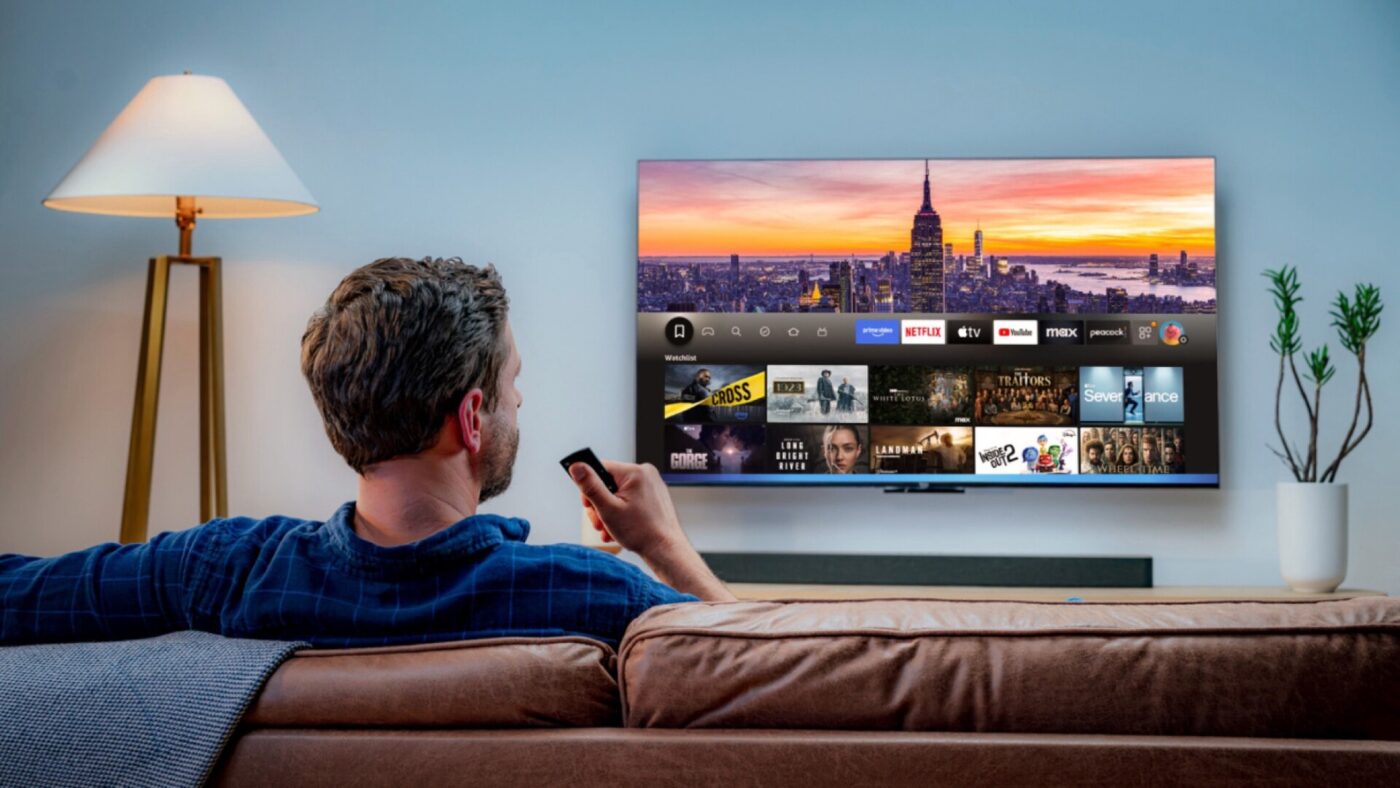
This guide will walk you step‑by‑step through installing SKYBOX TV 8K on a Fire TV Stick. The process takes about 5–10 minutes.
Step 1: Enable App Installation (Required)
Amazon hides these settings by default on newer Fire TV versions.
From your Fire TV home screen, navigate to:
Settings → My Fire TV
* If you see Developer Options
-
Select Developer Options
-
Click Install Unknown Apps
-
Turn ON permission for Downloader
➡️ Once enabled, move on to Step 2.
-
Select About
-
Highlight Fire TV Stick (or your device name)
-
Press the OK / Select button 7 times quickly
You will see a message saying: You are now a developer
-
Press Back once
-
Open Developer Options
-
Select Install Unknown Apps
-
Turn ON permission for Downloader
➡️ Continue to Step 2.
Step 2: Install the Downloader App
-
From the Fire TV home screen, select the Search (🔍) icon
-
Type Downloader
-
Choose Downloader by AFTVnews
-
Click Download / Get
-
Open Downloader once installation is complete
Step 3: Download 8K Player VIP
-
Open the Downloader app
-
When prompted, allow permissions
-
In the URL field, enter: 439873
-
Click Go
-
Wait for the app to download
Step 4: Install 8K Player VIP
-
When the download finishes, click Install
-
Once installed, click Open
(Optional) You may delete the installation file when prompted to save storage.
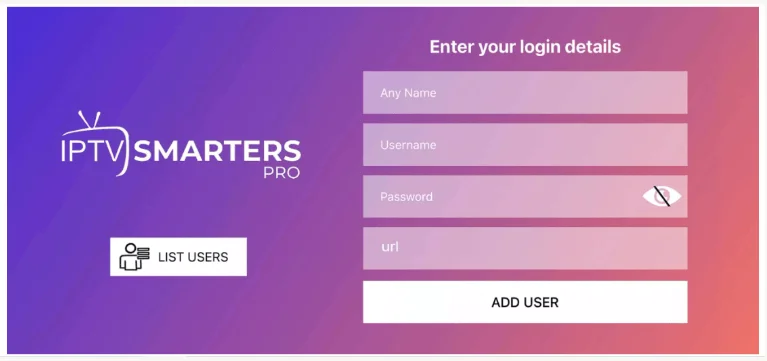
Step 5: Configure 8K Player VIP
-
Open the 8K Player VIP app
-
Click into the 8K VIP CLOUD PRO option box and select EDIT
-
Enter the following exactly as provided by us:
-
Playlist Name
-
Username
-
Password
-
-
Select Update Playlist
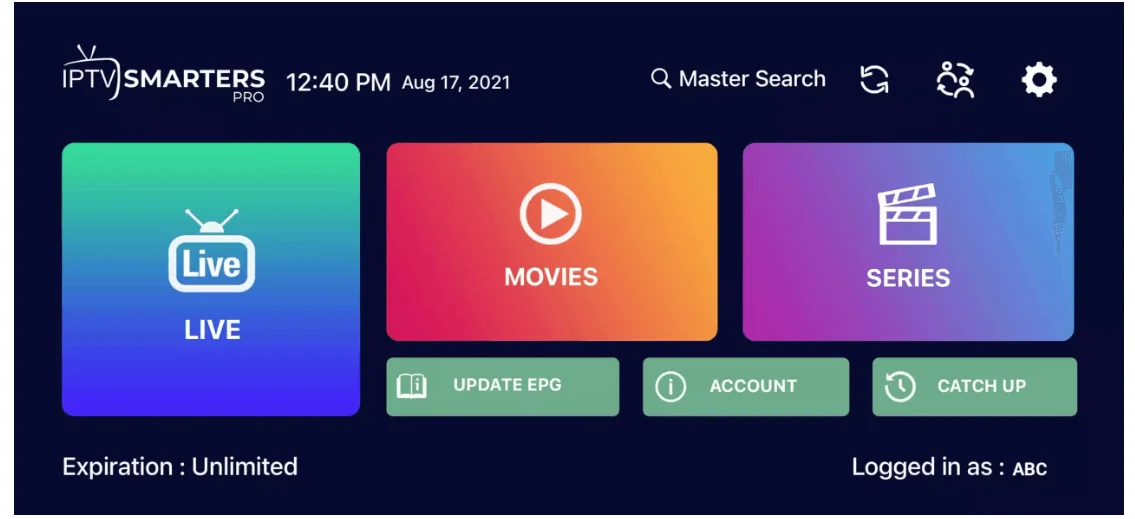
- Last step, click back into 8K VIP CLOUD PRO and select CONNECT
🎉 Enjoy your streaming experience.
*If you do not yet have a subscription, you can order here OR ask us via WhatsApp
Troubleshooting Tips
-
❌ App won’t install → Re‑check Install Unknown Apps is enabled for Downloader
-
❌ Buffering or freezing → Confirm playlist is set to CLOUD PRO
-
❌ App won’t connect → Double‑check username & password (case‑sensitive)
-
🔁 Restart Fire TV Stick if issues persist
Important Notes
-
A stable internet connection is required
-
For best results, use Wi‑Fi 5GHz or Ethernet (if supported)
-
VPNs are optional and only recommended if advised
If you need assistance, please contact support with:
-
Device type (Fire TV Stick model)
-
Error message (if any)